Preparing a resume PDF for import and troubleshooting
Check PDF text, passwords, scans, and layout before importing, then compare the structured draft with your original resume section by section.
- Resume writing guides
- Resume PDF
- Resume import
- Scanned PDF
- PDF troubleshooting
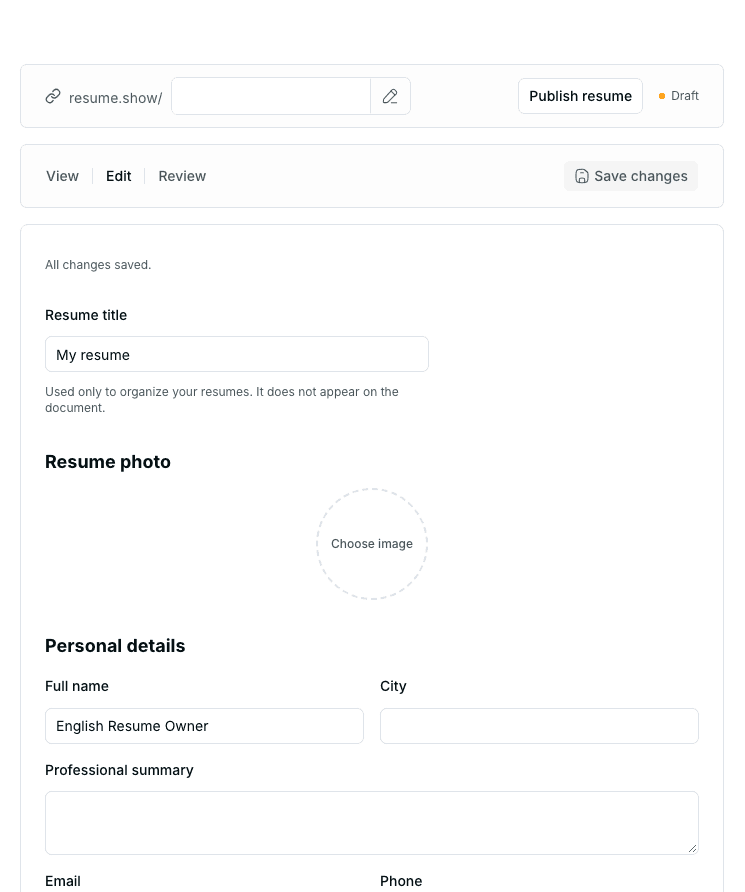
Create a resume from PDF to produce a private, editable version. This uses ResumeYek AI credits. The system reads text and necessary pages, and you must review the result.
Preparing a resume PDF for import and troubleshooting
When only a PDF remains, re-entering every detail into a resume builder takes time. But PDFs vary: some contain real text, some consist of page images, some are password-protected, and others use complex columns and tables. These differences affect extraction.
ResumeYek extracts PDF text and, when necessary, uses AI to read images of pages without readable text. It creates a new structured draft from that information. It does not directly edit the original PDF or reproduce its design exactly. Preparing the file before upload and comparing the complete result afterwards are essential.
1. Understand the output first
Importing is not the same as opening the original file in a PDF editor:
- Text is extracted; pages without readable text are processed visually where possible.
- Recognizable information is placed into sections of a new resume.
- You receive an editable draft to review.
The draft may contain contact details, a summary, work experience, education, certifications, projects, and skills. The available sections and their accuracy depend on the source. Design, fonts, colors, icons, and columns are not recreated, and the resume photo is not imported. Add your preferred image later in the editor.
See converting a resume PDF into an editable version for product capabilities and limitations.
2. Quick checks before upload
- Confirm the file is actually a PDF, not just renamed with a PDF extension.
- Open it in a normal viewer and check for errors.
- Make sure no password is required to open or read it.
- If text is selectable, copy part of your name, a job title, or a bullet.
- Check the copied text; unreadable or unselectable text may require visual reading.
- Keep the original separately for comparison.
- Follow the file-size and page-count limits shown in the upload form.
Repair damaged or password-protected files first. Unselectable text alone does not make a file unprocessable; page clarity matters for visual reading.
3. Testing whether a PDF contains readable text
Select a sentence, copy it, and paste it into a plain-text editor.
The result is readable
If words, spacing, and sentence order make sense, the PDF probably contains extractable text. This does not guarantee correct detection of every column and section, but it shows the file is not simply a flat image.
Characters are separated, corrupted, or out of order
Fonts, encoding, or the internal order of PDF elements may differ from their visual appearance. Extracted text can therefore be incomplete or scrambled even when the page looks correct. If you have the editable source, export a fresh, text-based PDF from that application.
No text can be selected
The pages may be scans. AI visual reading is used for pages without readable extracted text. Blurred, cropped, or low-quality images may still fail; verify the result.
4. Handling scanned PDFs
A scan usually consists of images of printed pages. It may have no extractable text, but visual reading can recognize information on clear pages.
- Prefer the original text-based version when available.
- Check that scanned pages are complete, straight, and clear, especially names, dates, and numbers.
- Upload through create a resume from PDF and compare the result with the original.
- If a page cannot be read, make a clearer scan or enter the information manually in the resume builder.
Visual reading does not guarantee every detail will be recognized. It does not transfer the page image or embedded resume photo into the new document.
5. Passwords, restrictions, and damaged files
Some PDFs open but restrict copying, printing, or processing. Encryption or corruption may cause text-reading errors.
- If you own the file and know its password, remove the restriction using a trusted source application and save a new copy.
- If someone else created it, request an unprotected copy or editable source from them.
- If it opens only in one particular application, export a new standard PDF from the original source.
- Do not bypass restrictions on files you are not authorized to edit.
Repeat the selection-and-copy test after creating the new version.
6. Columns, tables, and icons
A PDF's visual order is not necessarily its text order. In a two-column resume, extraction may alternate lines between columns. Tables, floating text boxes, headers, and footers can also rearrange information.
Review these features carefully:
- Multiple columns
- Dates in a separate column from job titles
- Skills represented only by charts, bars, or stars
- Contact details beside icons without text labels
- Multi-row education or experience tables
- Text placed on images or within decorative elements
- Repeated headers and footers
If you have the source, export a simpler linear layout with clear text headings and essential information outside images. The ATS resume guide explains readability principles without guaranteeing acceptance by any system.
7. Processing errors or an empty result
Troubleshoot in order:
- Confirm the file is a PDF and opens on your device.
- Check the upload form's current size and page limits.
- Try selecting and copying a sentence.
- Confirm reading does not require a password.
- Export a fresh, simpler PDF from the editable source if available.
- Save it with a simple filename and try again.
- If text and page images remain unreadable, obtain a clearer copy or enter details manually.
Uploading the same damaged or unreadable file again does not repair its source. Obtain a clearer, valid version, and contact support about persistent errors.
8. A draft was created, but information is missing
A generated draft is not a confirmation of accuracy. Open it beside the original and compare every section.
Contact information
- Full-name spelling
- Phone number and country/area code
- Email address
- City or location, if needed
- Professional links
Details beside icons or in headers may be moved or omitted.
Professional title and summary
Make sure the title, seniority, and summary match the original. The draft must not invent seniority, expertise, or achievements.
Work experience
Compare:
- Company name
- Role title
- Employment or engagement type
- Start and end dates
- Whether the work is ongoing or finished
- Bullet order
- Numbers, units, and responsibility scope
In multi-column files, one role's dates can become associated with another.
Education and certifications
Check institution, field, degree, certification, and date against the source. Do not infer official equivalents or recognition.
Projects and skills
Check tool, technology, and product spelling, including skills originally shown only as icons or charts. Make sure project descriptions have not been assigned to the wrong project.
9. Facts matter more than appearance
A new structured resume will naturally look different from the original PDF. Review in this order:
- Identity and contact information
- Organization, role, and qualification names
- Dates and current status
- Numbers, units, and achievements
- Correct association of bullets with their experience or project
- Section completeness
- Wording, order, and appearance
For a broader check, see resume review before sending.
10. Final PDF-import checklist
Before upload
- The PDF opens without errors.
- Reading requires no password.
- Text readability or scanned-page clarity has been checked.
- Selectable text has been copied and checked where available.
- The original has been kept for comparison.
- The file meets the upload form's limits.
After draft creation
- Names, contact details, and links match the original.
- Role titles and seniority are unchanged.
- Company, university, and certification names are correct.
- All dates, numbers, and units have been checked.
- Every bullet belongs to the correct experience or project.
- Skills shown visually or with stars have been reviewed as text.
- No unsupported claim or result remains.
- The final draft has been reread before export or publication.
Summary
For a more reliable import, use a valid, unprotected PDF within the permitted size and page count. Extractable text or clear page images help, but poor quality and complex layouts can still introduce errors. ResumeYek creates a new draft from what it reads; it does not edit the source or transfer its design and images.
Even after successful processing, compare names, dates, numbers, titles, and section associations with the original. The result is a starting point for editing, not a guaranteed, ready-to-send document.
Related articles
Translating a resume into English: a meaning and review checklist
Check job titles, dates, official names, verb tense, terminology, and layout before and after translating your resume.
What is an ATS resume? A guide to readability, structure, and file checks
Understand applicant tracking systems and resume parsing, then check your text, sections, dates, and file without relying on a score or a promise of acceptance.
Writing an English resume: a guide for Persian speakers
Write an English resume from scratch, choosing section names, dates, and accurate wording for experience, education, and skills without translating word for word.